Getting Started
This guide will teach you how to develop indicators, design strategies, and run backtests using OneSecondTrader.
Installation
Step 0
Make sure that pip is installed. If not, install it by following the Official Documentation.
Step 1
Navigate to the folder you want to use or create a new one. Then run the following comand inside this folder to create a virtual environment:
Step 2
Install OneSecondTrader by running the following command:
Step 0
Make sure that poetry is installed. If not, install it by following the Official Documentation.
Step 1
Navigate to the folder you want to use or create a new one. Then run the following comand inside this folder:
Step 2
Add package-mode = false to your pyproject.toml file. It should look similar to this:
Step 3
Install OneSecondTrader by running the following command:
Step 4
Activate the virtual environment by running the following command:
Historical Market Data
Running backtests requires historical market data. For serious work, we recommend using a data provider like Databento.
Step 0
Assuming you already have a Databento account, download the data you want to use for backtesting in .dbn format and .zst compression (note that it does not matter how you choose to split the files).
For more information, see the Databento Documentation.
You should receive a .zip file that contains a .dbn file(s) and some metadata .json files (importantly, symbology.json).
Step 1
Start an interactive Python session (poetry run python if you use poetry, python or python3 if you are using venv) and run the following commands to create an empty securities master database:
from onesecondtrader import secmaster
from pathlib import Path
secmaster.create_secmaster_db(Path("secmaster.db"))
Step 2
Still in an interactive Python session, run the following commands to ingest the data into the database:
This may take a while. After it's done, you can exit the interactive Python session (exit()).
Step 3
Set the SECMASTER_DB_PATH environment variable to the path of the database you just created.
You can do this by running the following command (this is not necessary if you are running the dashboard from the same directory as the database):
Coming Soon
Other providers will be supported soon. If you want to contribute, please open an issue or submit a pull request.
Exploring the Dashboard
Now it is time to explore the dashboard. It will allow you to run backtests and analyze performance metrics. The OneSecondTrader package provides a simple SMA crossover strategy that you will backtest to acquaint yourself with the dashboard. Afterward, you will learn how to create your own indicators and strategies and backtest them via the dashboard.
Step 0
Start the dashboard server:
Open your browser and navigate to http://127.0.0.1:8001.
Step 1
Once the dashboard is up and running, you should see the following page:
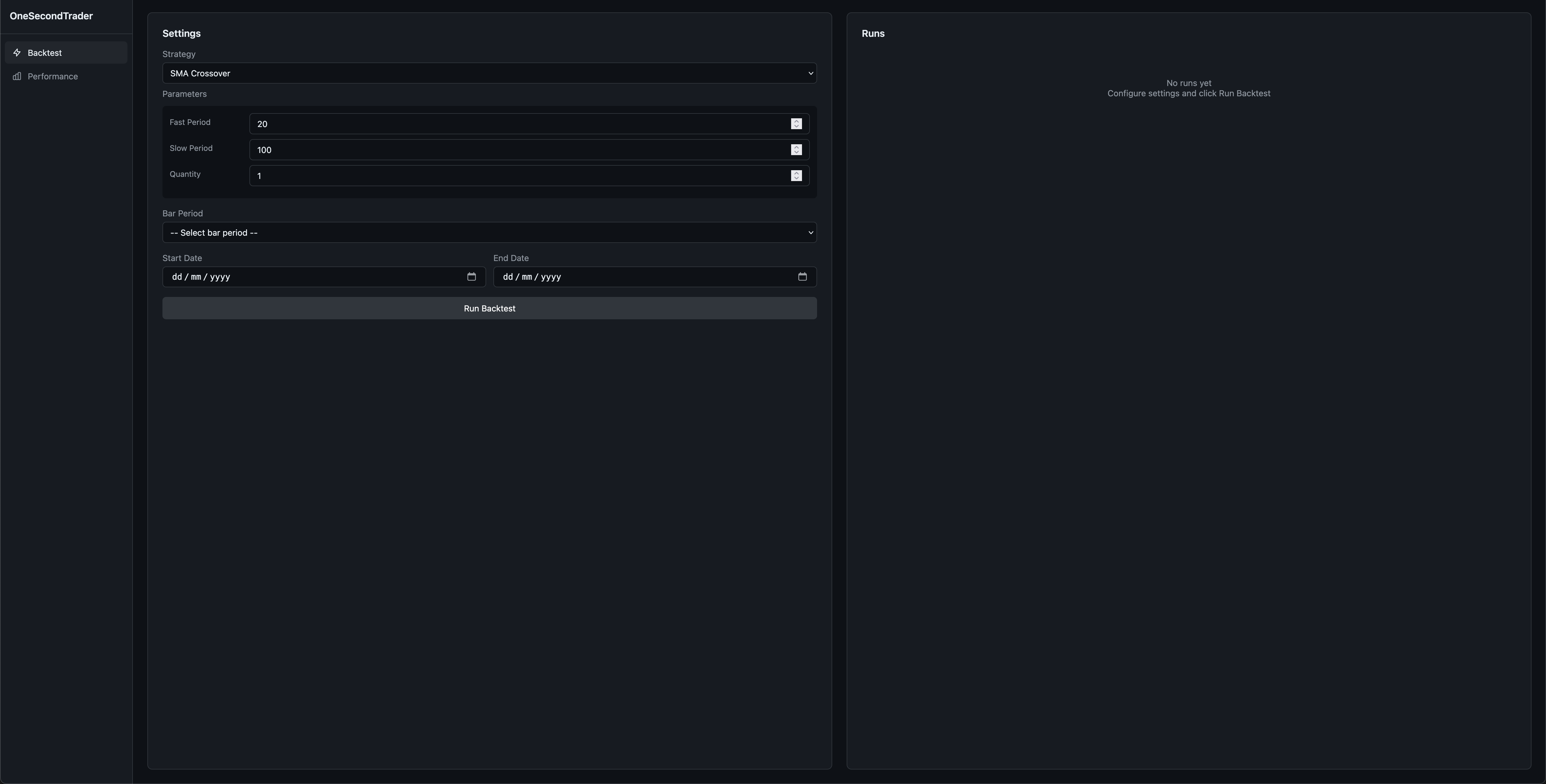
Now select the strategy (recommended: SMA Crossover for demonstration purposes) and optionally tweak the parameters.
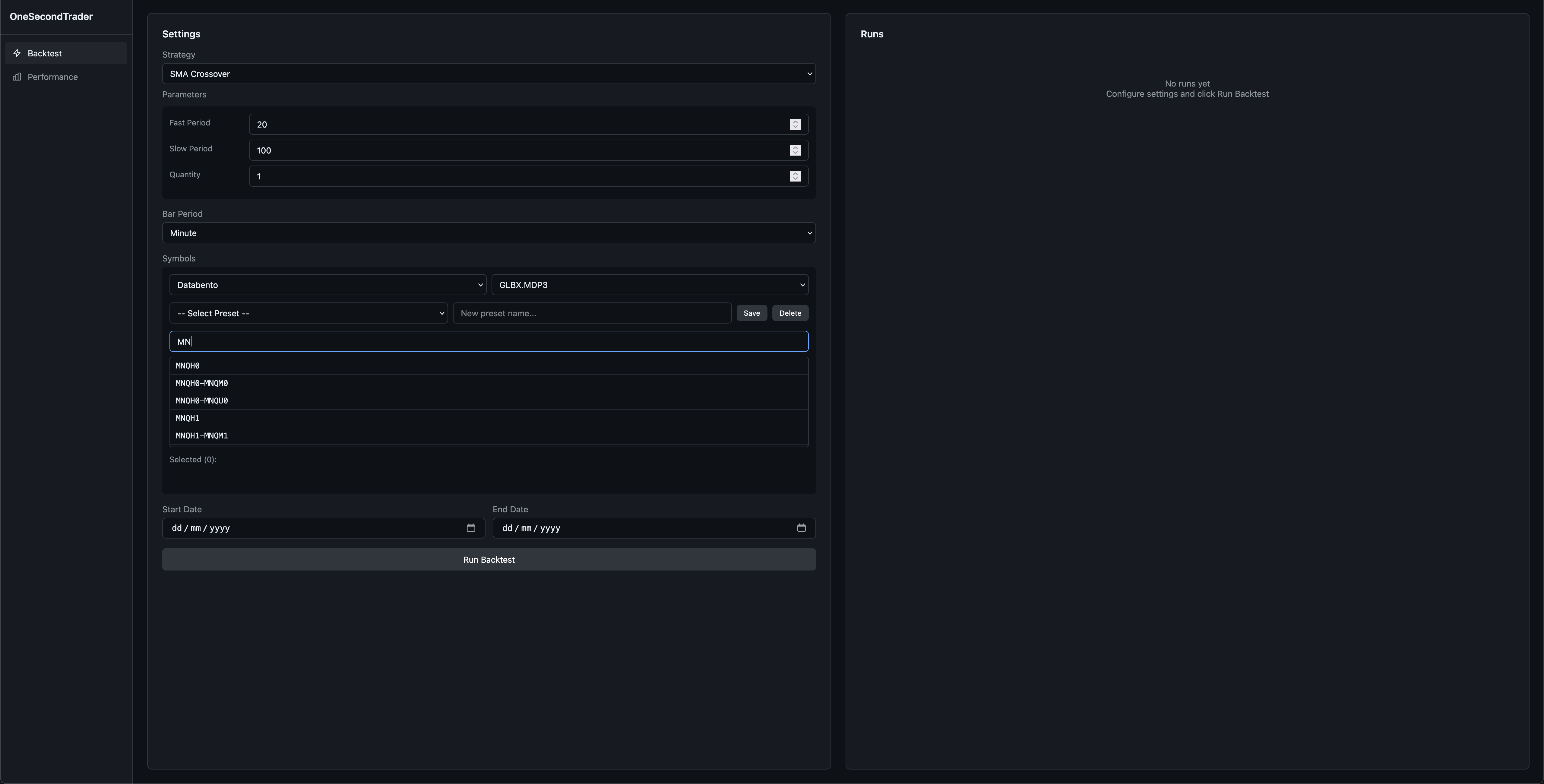
Then select the bar period (the shown options depend on the data you have ingested) and the publisher and dataset (again, you will only see what you have ingested).
Then select a symbol (or symbols) and set the date range.
Step 2
Click Run Backtest and wait for it to finish.
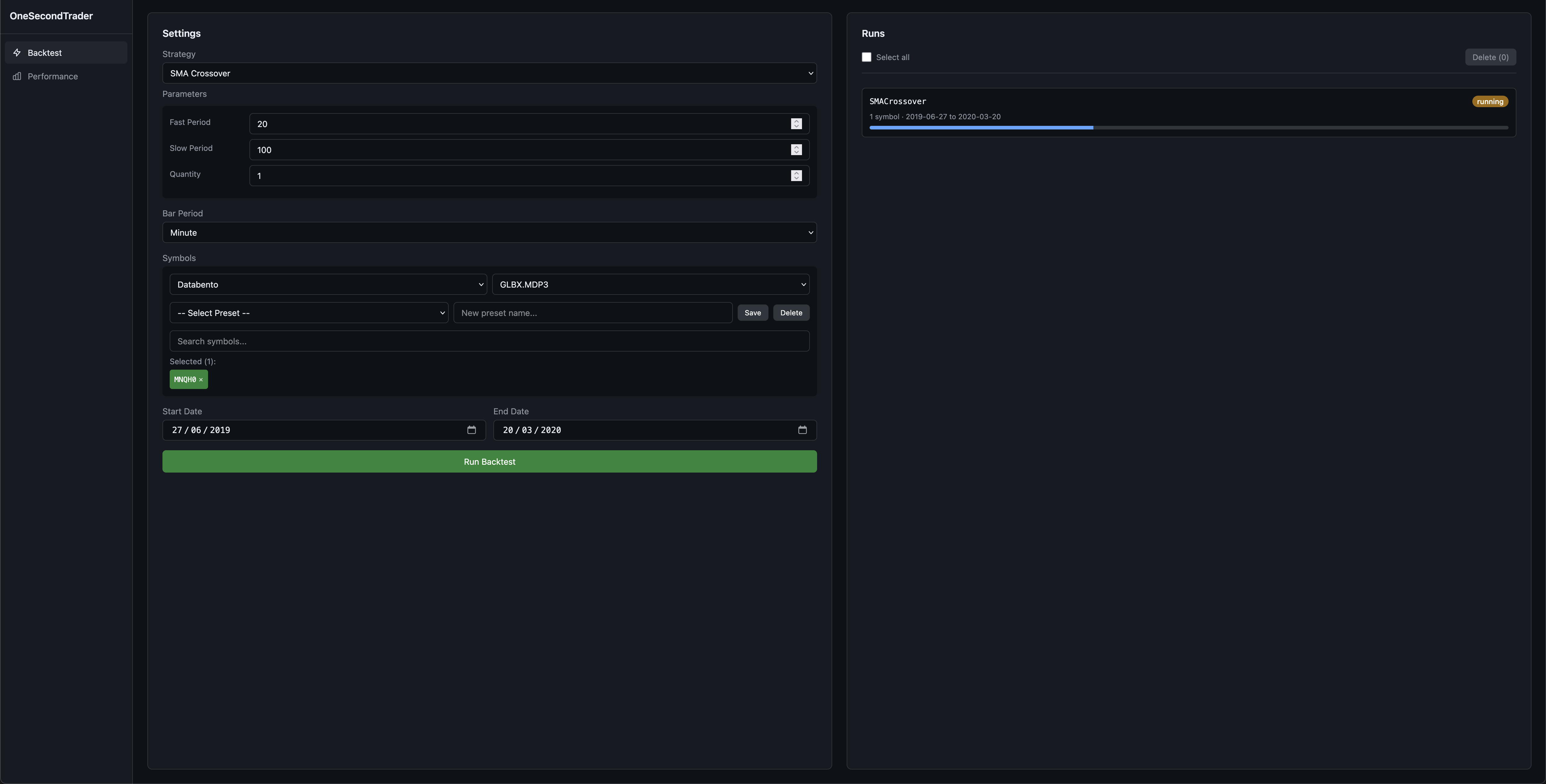
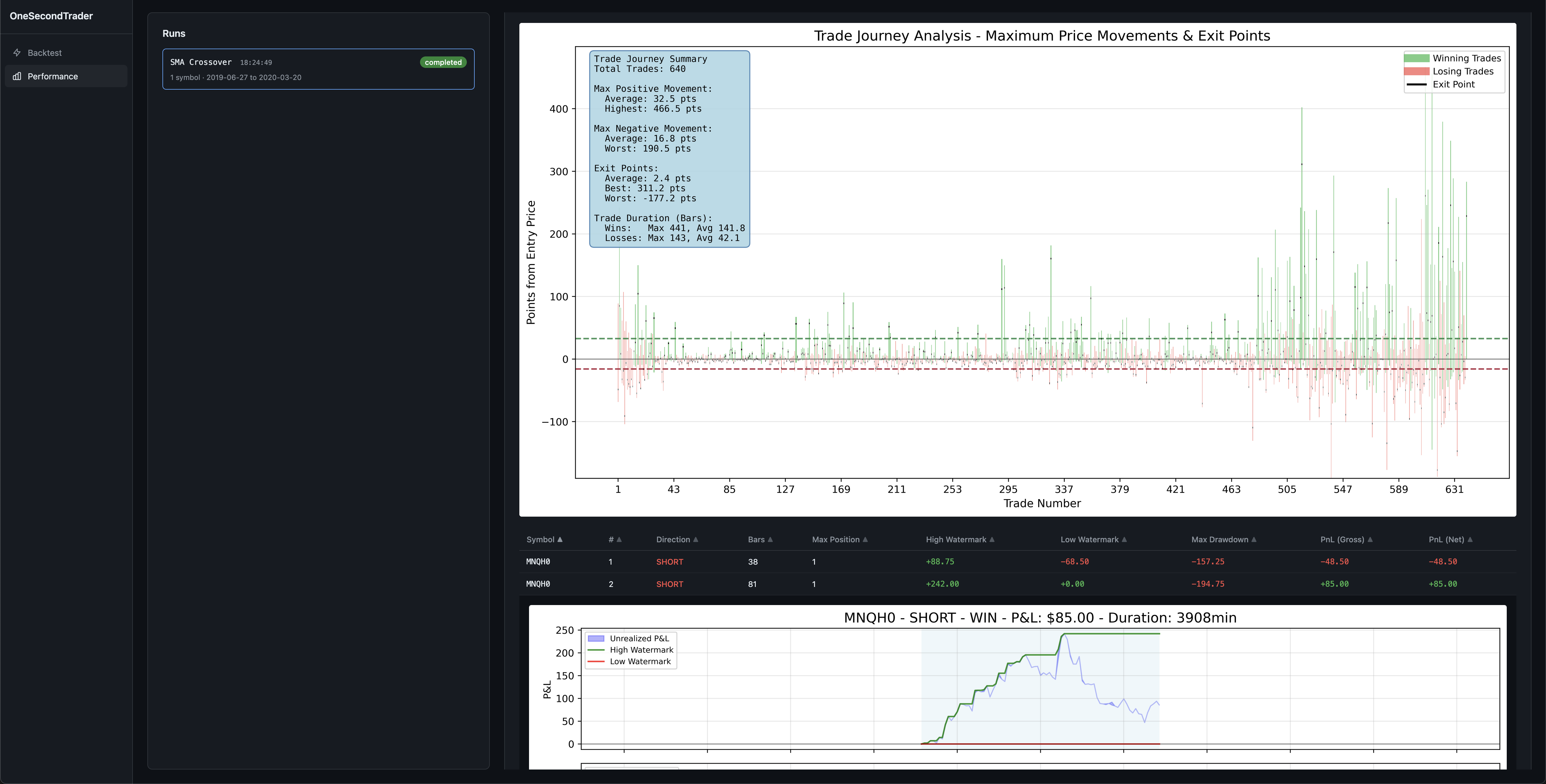
You can then click on the run once it is completed to view the performance metrics and charts.
This will guide you to the performance page.
You can also access the performance page by clicking on the Performance link in the sidebar.
Once a run is selected, you will be shown the performance metrics for that run.
If you click on a specific trade in the table, you will be shown a chart of that trade.
To view per-trade performance metrics, you will need to select the symbol first via the search bar above the table.
Step 3
Kill the dashboard server by pressing Ctrl+C in the terminal where you started it.
Developing Indicators
Now it is time to develop your first indicator.
Step 0
It is advisable to familiarize yourself with how OneSecondTrader works under the hood. I recommend that you take a look at (at least) the following packages and their source code:
onesecondtrader.modelsonesecondtrader.eventsonesecondtrader.messagingonesecondtrader.indicatorsonesecondtrader.strategies
Step 1
Create an indicators/ folder in the same directory as your secmaster.db file, then create a new file called my_indicators.py inside it.
Step 2
Implement your indicator by subclassing onesecondtrader.indicators.IndicatorBase and implementing the name property and the _compute_indicator method.
Let us implement one of the simplest of indicators, the close price indicator.
| indicators/my_indicators.py | |
|---|---|
Any indicator files placed in the indicators/ folder will be automatically discovered when the dashboard starts.
Developing Strategies
Step 0
If you have not already done so already in the previous step, familiarize yourself with how OneSecondTrader works under the hood. I recommend that you take a look at (at least) the following packages and their source code:
onesecondtrader.modelsonesecondtrader.eventsonesecondtrader.messagingonesecondtrader.indicatorsonesecondtrader.strategies
Step 1
Create a strategies/ folder in the same directory as your secmaster.db file, then create a new file called my_strategies.py inside it.
Step 2
Implement your strategy by subclassing onesecondtrader.strategies.StrategyBase. Note that you can access the indicator you implemented in the previous step by importing it.
Any strategy files placed in the strategies/ folder will be automatically discovered when the dashboard starts and will appear in the strategy dropdown.
Step 3
Start the dashboard server and run a backtest with your new strategy.